
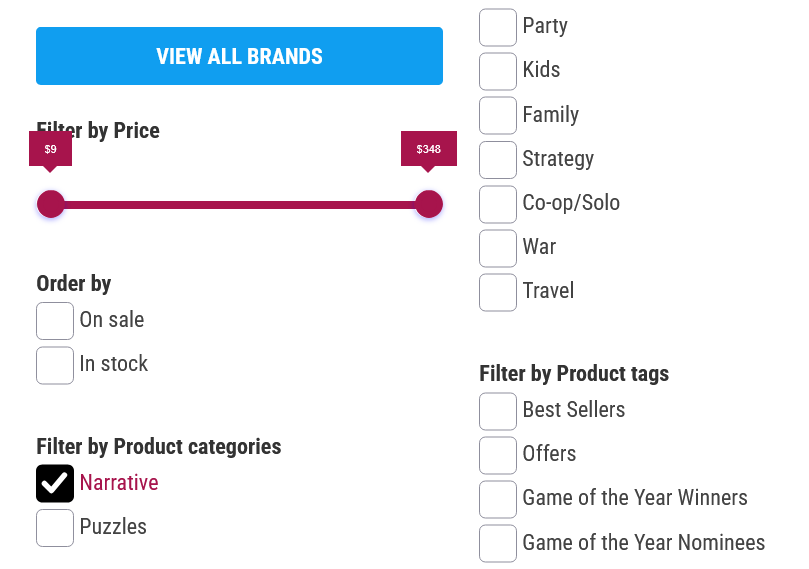
I’ll be sharing how you can use the sidebar found in any of the main category pages helps you save time when browsing.
View All Brands: This first button lets you see all the brands we carry, so if you want to see all the games that we have from a certain publisher, using this button is the way to go.
Sort By Price: This slider is helpful when you want to set a fixed budget range, which is helpful during the holiday season, or when you have a gift card to use.
Order By (On Sale / In Stock): These checkbox allow you to sort items by whether they are discounted or more importantly, to only see in stock items. This option is helpful when you only want to see items that you can get right now,
Filter by Product Categories: This filter may seem redundant, especially since the same links are found at the top and bottom of every page, but these filters are mainly used to find games that have multiple categories.
An example would be looking for a game in the Family Category that is simple enough to be also found in the Kids Category, or finding a game in the Strategy Category that also has Solo or Cooperative elements.
Filter by Product Tags: These are my favourite filters, since they let you see all the Game of the Year Winners (“Spiel des Jahres”/”Kennerspiel des Jahres”/”Kinderspiel des Jahres”) or even Bestsellers in the Game of the Year Nominees/Recommended games as a whole, or by category.
You can also view all the games on Pre-Orders and Offers in each individual category this way.
Finally, you can use the Card Sleeves and Game Monies tags to narrow down the items on view when you are in the Accessories Category.